Chat Widget
Your chat widget is the window visitors use to talk to your agent. Change how it looks, what it says, and where it appears, then add it to your site with a single snippet.
Where to find it
Open your agent, go to Deploy, and choose Chat widget then Manage. There are four tabs, Content, Style, AI and Embed, with a live preview beside them.
What your visitors see
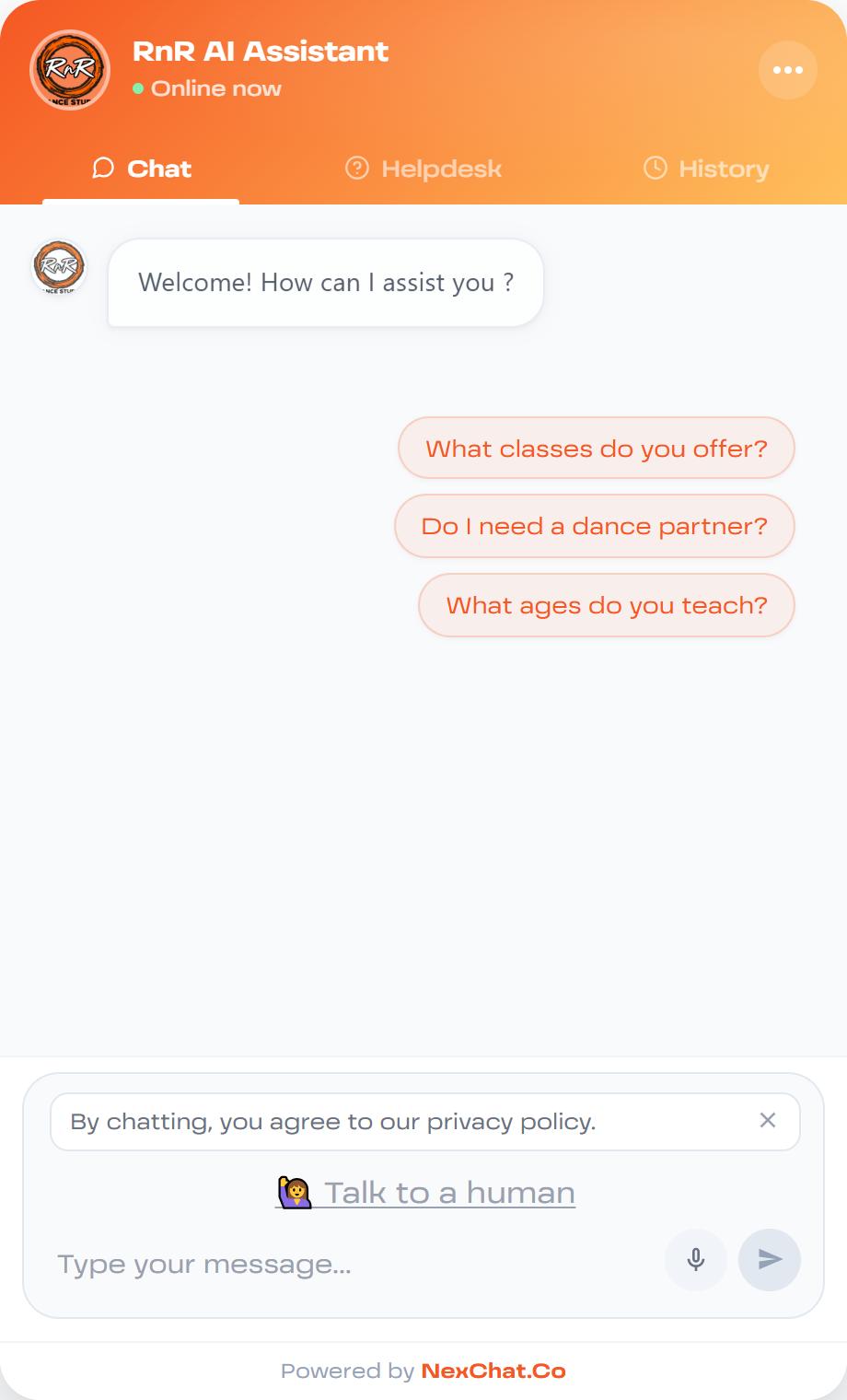
The Chat tab: welcome message, suggested questions, privacy notice, and the option to talk to a human.
- Chat, Helpdesk and History tabs across the top.
- Suggested questions that visitors can tap to start a conversation.
- A privacy notice ("By chatting, you agree to our privacy policy") that links to your policy. It can be switched off and dismissed.
- Talk to a human, when you have turned on Human Handoff.
- A microphone button, when you have turned on the Voice Agent.
- A menu (the three dots) with Start a new chat, End chat and Close chat.
- On every reply: a Copy button, plus thumbs up and thumbs down (if you allow feedback) and Regenerate (if you allow it).
Helpdesk
The Helpdesk tab lists the questions you choose. Tapping one switches to the chat and asks it.
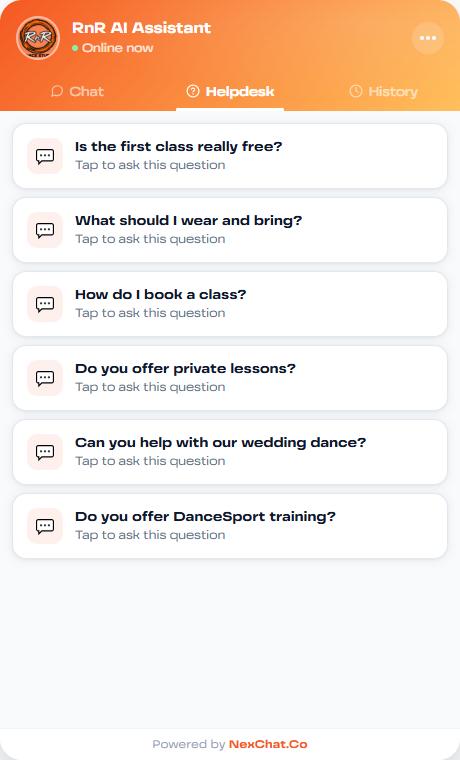
The Helpdesk tab shows your helpdesk questions.
History
When Chat History is on, visitors can reopen their earlier conversations. When it is off, the tab explains that conversations are not saved.
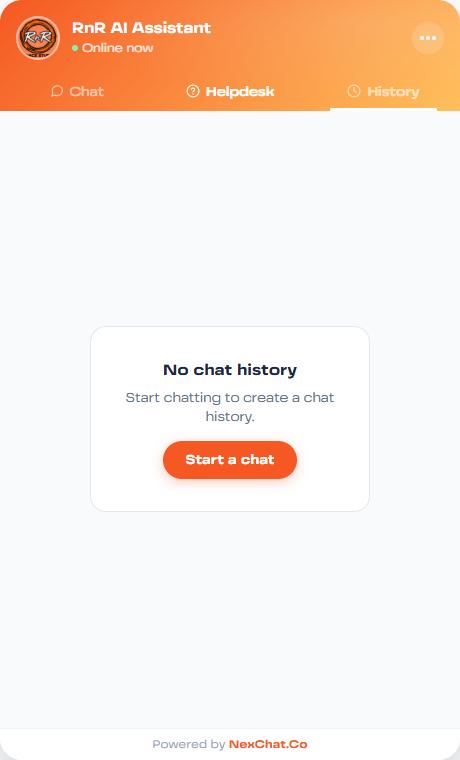
The History tab, before a visitor has chatted.
Content tab
- Display name and Initial message (the welcome message).
- Suggested messages: up to six starter questions.
- Message placeholder: the grey text in the typing box.
- Collect user feedback: lets visitors rate replies with thumbs up or down.
- Regenerate messages: lets visitors ask for a new answer.
- Helpdesk questions: up to ten, shown on the Helpdesk tab.
- Chat History: saves conversations so visitors can return to them.
Style tab
- Logo for the chat header.
- Theme colour, chat header colour and chat bubble button colour.
- Colour gradient: switch on and choose an end colour.
- User message font colour: Auto Detect, White or Dark.
- Chat position: bottom right or bottom left.
- Chat window size: Compact (320 by 520), Standard (448 by 650), Large (520 by 750), or Custom (width 300 to 600, height 400 to 900).
- Chat bubble size: Small (56 px), Standard (64 px) or Large (80 px).
- Privacy policy: show the notice and set your Privacy Policy URL.
AI tab
Shows whether your agent is trained and when it was last trained. You can change the agent type, AI model, instructions, temperature and maximum response length here. If you have added sources since the last training, a prompt asks you to retrain.
Embed tab
Choose how to add the widget to your website:
- Chat widget (script): copy the snippet and paste it just before the closing
</body>tag. You can also pass a visitor name and email if you already know who is visiting. - Iframe embed: copy the iframe code to place the chat window inside a page. The microphone is allowed.
- React component: use the provided component in a React site.
Each option has a copy button, and a Demo or Test button so you can try it first.
Tip: To limit which websites may use your agent, add them under Security then Allowed Domains.
Removing "Powered by NexChat"
The footer of the widget reads "Powered by NexChat.Co". It can be removed with the Remove Branding add-on, which you can add from Plans in your account settings.