Human Handoff
Some visitors want a person. Human Handoff lets them ask, leave their contact details, and be followed up by your team, instead of being stuck with the AI.
Turn it on
- Open your agent and go to Settings, then Human Handoff.
- Switch on Enable Human Handoff. This adds a Talk to a human link to your chat widget.
- Optionally enter a Notification Email. Leave it blank to use your account email. A shared inbox such as support@yourcompany.com works well.
- Add any custom keyword triggers, then click Save Settings.
What starts a handoff
- The button: the visitor clicks Talk to a human.
- Keywords: the visitor types a phrase such as "talk to a human", "speak to a person", "live agent" or "need a human". There are 18 built-in phrases that are always active.
- Your own keywords: add words such as "complaint", "call me" or "urgent". Keywords are not case sensitive.
- The AI decides: if the AI cannot help, it can offer a human. This works with OpenAI models. On other models the AI tells the visitor to use the Talk to a human button instead.
What the visitor sees
The agent replies "Happy to arrange that. Please leave your contact details below and our team will get back to you." A short form appears.
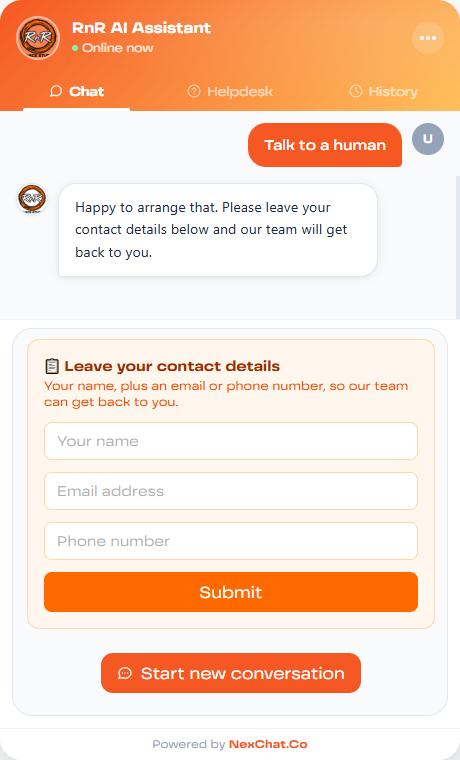
The contact form a visitor fills in after asking for a human.
- A name is required, plus an email address or a phone number.
- The visitor sees a clear message if something is missing or invalid.
- After submitting they see "Details received", and the chat ends. They can start a new conversation.
Handoff is contact-first. You are only alerted once the visitor has left their details, so every request you receive has someone to get back to.
What you receive
- One email per request, with the visitor's name, email, phone, what they said, the time, and the recent conversation. It goes to your Notification Email, or your account email.
- An inbox entry in the Handoff inbox (below).
- A lead: the details are also saved on your Leads page with the source "Handoff form".
The Handoff inbox
There are two places to work through requests:
- Per agent: Activity, then Handoff inbox.
- All agents together: Inbox in the main account menu. An orange badge shows how many are waiting.
| Status | Meaning |
|---|---|
| Pending (New) | Nobody has looked at it yet. |
| Acknowledged (In progress) | Someone is handling it. Use the Acknowledge button. |
| Resolved | Done. Use the Resolve button. |
Click a request to read the conversation. Each request shows the visitor's name, email (a link you can click), phone, and which trigger started it: button, keyword or AI.
Good to know
- To prevent abuse, an agent accepts up to 20 completed handoff requests per hour.
- A request is only listed once the visitor has submitted their details. If someone asks for a human and leaves, nothing appears in your inbox.
- Your business contact details are not used while Human Handoff or Lead capture is on. The agent takes details or offers a handoff instead.