Introduction
Introduction
Welcome to the Quick Start guide for NexChat! This page walks you through the essentials: setting up your account, creating your first AI agent, and putting it on your website.
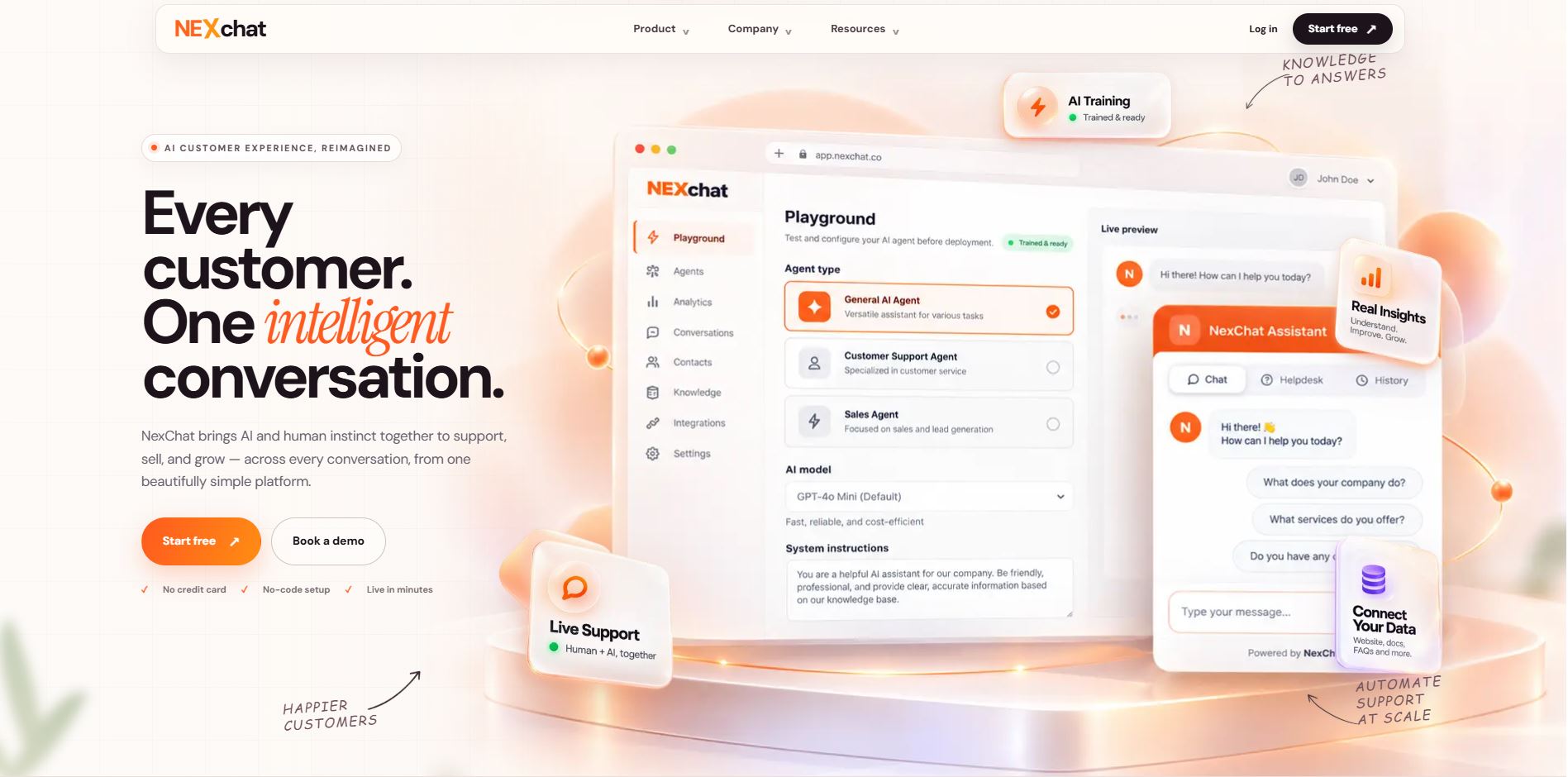
What is NexChat?
NexChat is an AI platform that helps businesses build agents around their own information. You add your documents, website pages, text and questions and answers, and the agent answers visitors from that knowledge, around the clock, on your website.
Key Features
- Three ways to start – Pick a ready-made industry template, build from your website link, or set everything up manually.
- Answers from your own knowledge – Train with files, text, website pages and Q&A pairs. The agent answers from what you give it and says so when it does not know.
- Your choice of AI model – OpenAI, Anthropic, Google and others, with your own instructions, temperature and response length.
- Talk to a human – Visitors can ask for a person and leave their details. You get them in your Handoff inbox and by email.
- Lead capture – Collect names, emails and phone numbers in conversation and export them from the Leads page.
- Voice agent – Let visitors speak to your agent with the microphone button.
- Insights – See chats, conversations, topics and sentiment in Analytics, plus chat logs and errors in Activity.
- Your brand, your site – Change colours, logo, welcome message, window size and position, then embed the chat widget with one snippet.
- Security controls – Limit which domains can use your agent, block IP addresses, rate-limit visitors, and filter language. See Security.
With NexChat you can offer 24/7 answers, take contact details when visitors want a person, and see what your customers are asking about.
How to Add NexChat to Your Website
The Embed tab in your chat widget settings gives you three ways to add your agent:
- Chat widget (script): Paste one snippet before the closing body tag. A chat bubble appears in the corner of every page, and opens a floating chat window when clicked.
- Iframe embed: Place the chat window inside a page using an iframe, so it sits right in your layout.
- React component: Use the ready-made component if your site is built with React.
Full details are in the Chat Widget guide.